
How to Print a Coloring Page at Home Without Clipping the Art
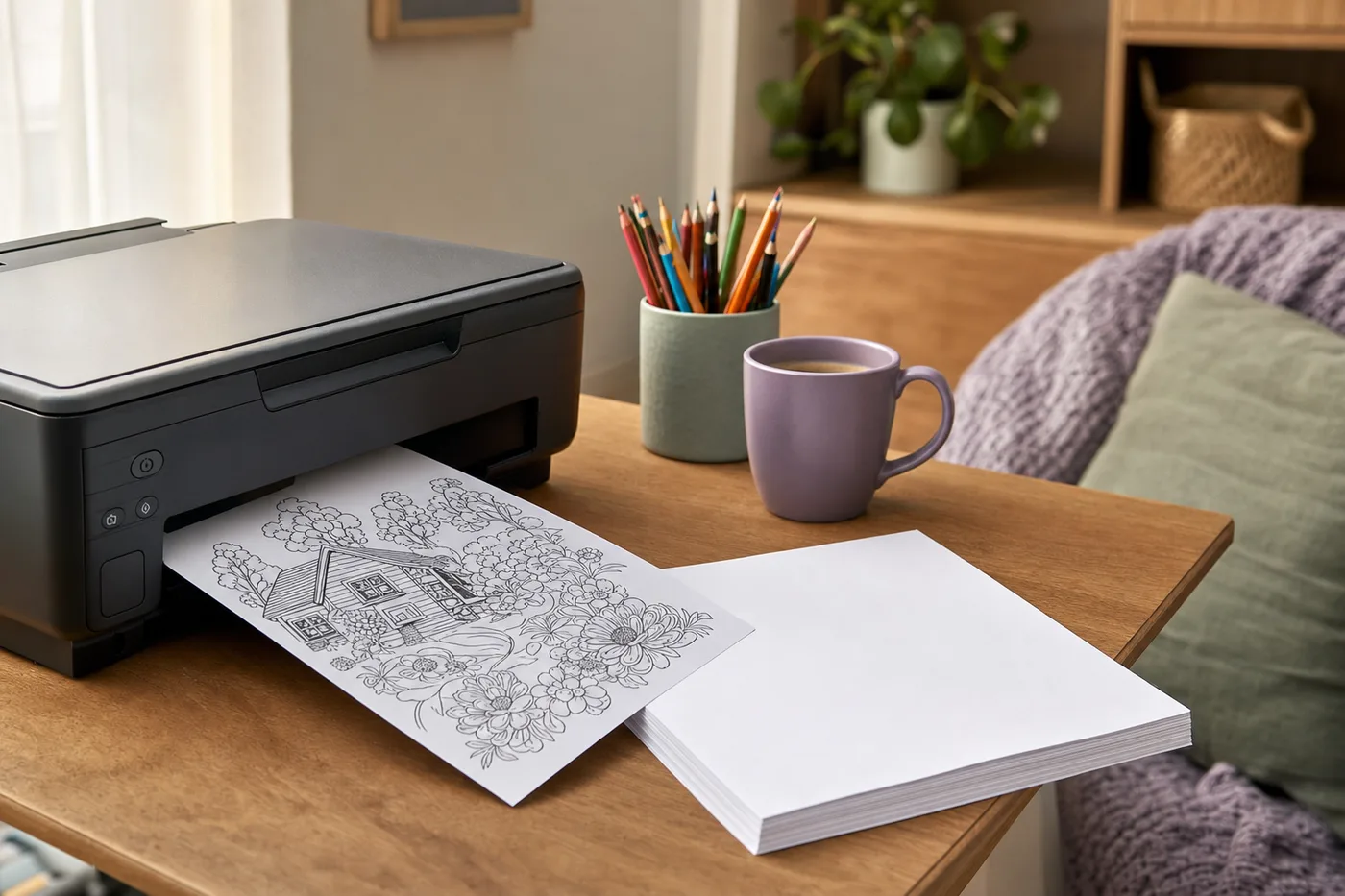
Did the top of your coloring page get cut off when you printed it, or did the whole picture shrink into the middle of the sheet? Almost every time, one of three settings is to blame: paper size, scaling, or your printer's own margin, and each one takes seconds to fix. This guide walks through them using our printable pages, and the same steps work for most printables.
What's in a Sprite download
- A PDF for printing, sized for US Letter paper (8.5 x 11 inches), with the art sitting inside an even quarter-inch (0.25 in) white border on every side.
- PNG image files of each page (2400 x 3150 pixels, 300 DPI) for coloring apps. You can print these too, but the PDF prints better, since its size and margins are already set.
Step 1: Load US Letter paper and choose "Letter"
In the print window, check that the paper size says Letter (or 8.5 x 11), not A4. A4 is slightly narrower and taller, and a Letter page printed on A4 settings can shift or shrink.
Outside the US and Canada, most home printers use A4 paper. If that's what you have, choose Fit in step 2 so the whole page lands on the sheet.
Step 2: Choose the scale
Print windows usually offer two choices, with slightly different names on each device:
- Actual size / 100% / Original size. Prints the page at its true size. Best if your printer can print close to the edge of the paper.
- Fit / Fit to page / Fit to printable area / Scale to fit. Shrinks the page slightly so it fits inside what the printer can reach. The art ends up a little smaller, and nothing gets cut off.
Which to pick: try Actual size first. If any edge of the art is missing, print again with Fit.
Step 3: Know your printer's margin
No home printer can print all the way to the edge of a sheet. Most inkjet and laser printers leave a strip of about one eighth of an inch (roughly 3 to 5 mm) unprinted on each side. Our quarter-inch border is wider than that, so at actual size the art fits on most printers.
Some printers need a bigger strip, most often along the bottom edge. Some HP DeskJet models, for example, can't print in the bottom half inch or so, and some Canon printers need nearly an inch at the bottom when paper goes in through certain feed slots. If the bottom of the picture is missing and the other three sides are fine, this is why. Fit fixes it.
Step 4: Settings on each device
Windows or Mac, in Adobe Acrobat Reader: under Page Sizing & Handling, choose Actual size. If an edge clips, choose Fit. Adobe's guide to scaling printed pages shows each option.
Mac, in Preview: open the print window and click Show Details if the options are hidden. Set Scale to 100% with Scale to Fit unticked. If an edge clips, choose Scale to Fit: Print Entire Image. Apple explains more in its Preview print-size help.
Chromebook, or Chrome on any computer: click More settings. Under Scale, choose Default for actual size, or Fit to printable area. Chrome may switch to "fit" on its own when a page is larger than the printer can reach. Google's Chromebook printer help covers setup and printing.
iPhone or iPad: printing from the Files app or a browser uses Fit to Page by default. Some apps offer Original Size under print options. Your printer maker's app (HP Smart, Canon PRINT, Epson Smart Panel) usually gives more control over scaling.
Android: open the PDF, tap Print, then the small arrow to show more options. Check the paper size is Letter. Scaling options depend on the printer's app or plugin.
Step 5: Do a test print on plain paper
Before printing on good paper or cardstock, print one page on plain paper and check:
- All four edges of the art are on the paper, with a thin white border.
- The border looks about even on all sides.
- Lines are crisp, not gray or fuzzy. If they look faint, set print quality to High or Best.
Printing on heavier paper
Everyday printer paper works fine for pencils and crayons. For markers, a heavier paper such as 65 lb cardstock stops most bleed-through, and most home printers can feed it. Set the paper type to Cardstock or Heavy paper in the print settings, and feed one sheet at a time if it sticks.
Print it again
You can print a printable page as many times as you like: one copy in pencil, one in marker, or one for a friend. Our license covers personal and classroom use.
The Art of Doing Nothing printable collection has 16 coloring pages for adults, as a Letter PDF and PNG files. Three more pages are free to try, and none of the pages in either set are in the printed book.